NYSAIS Committee Printer
Updated
Install the Printer
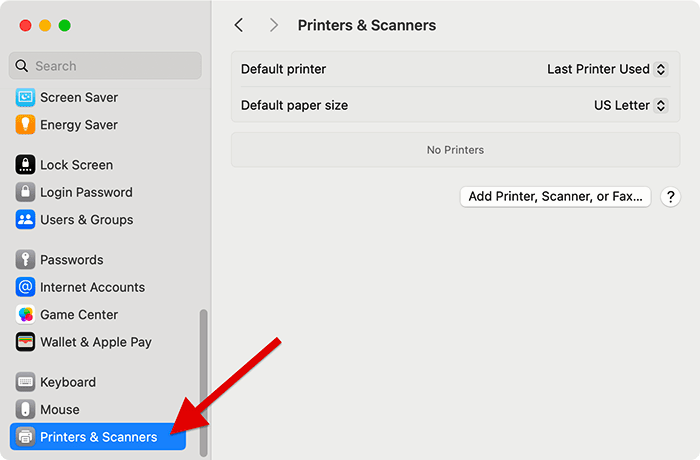
- Select the Apple Menu in the upper left-hand corner of your screen. Then select System Settings... from the side menu (you may need to scroll down).
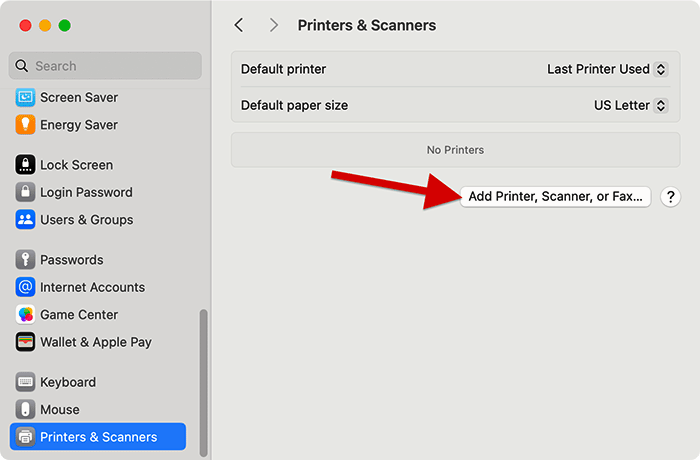
- Select the "Add Printer, Scanner, or Fax" button.
- Select the IP button. In the Address field, type 10.10.40.3 and rename it as NYSAIS Printer. Make sure your settings match the image below
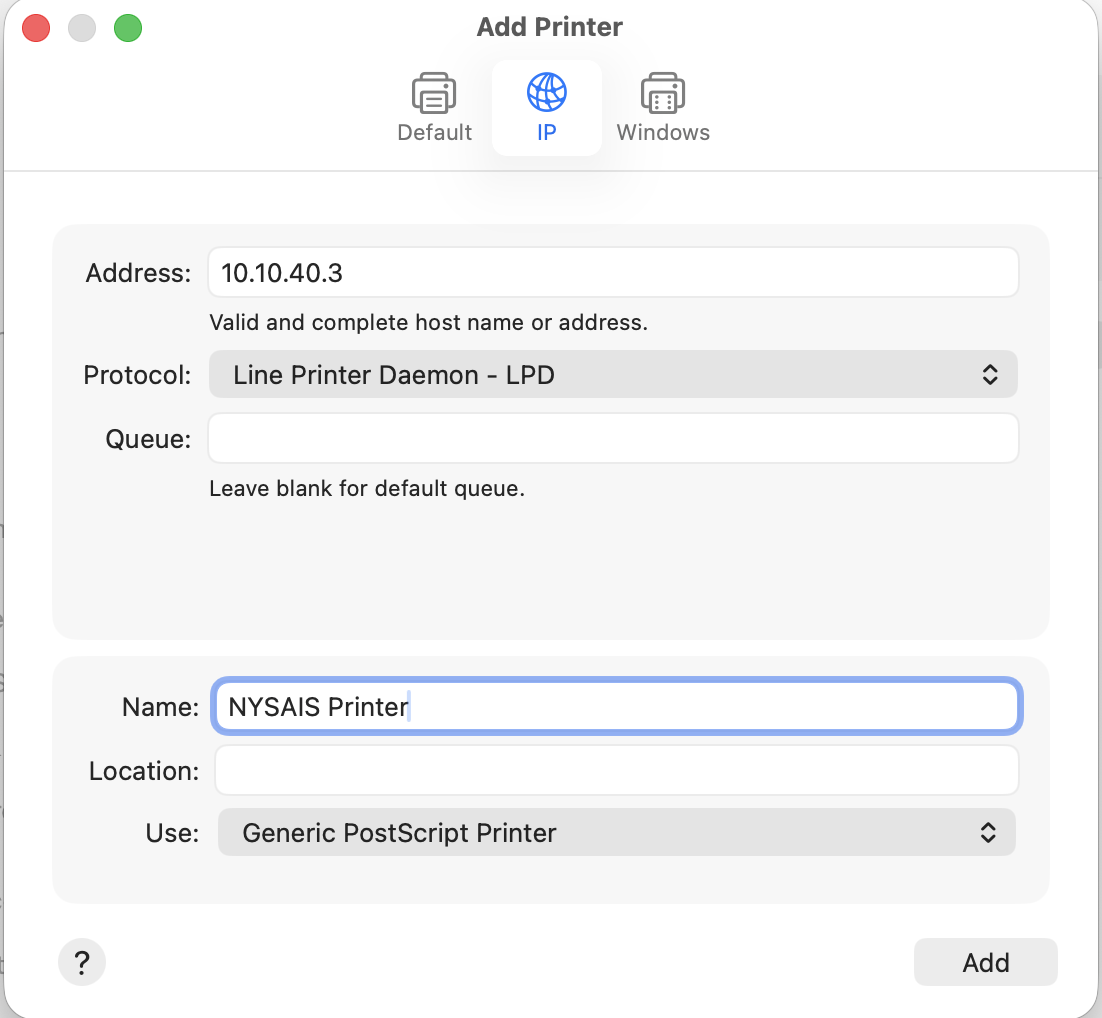
4. Select the Add button to continue.
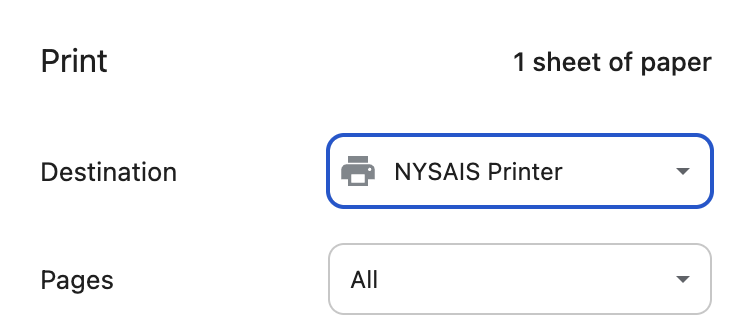
To Print
Select NYSAIS Printer as your destination
If you need assistance with this, contact the our team:
new_request
/hc/en-us/requests/new
/hc/theming_assets/01HZPQAXCMXY9AZFFYJMBP99PW
Submit a Tech Request
custom
https://brearley.jotform.com/231025492028954
/hc/theming_assets/01HZPQAXH5PSK2ZF06RV3AXQMW
Event Request Form
custom
https://brearley.myschoolapp.com/app/#login
/hc/theming_assets/01HZPQAY03YXS0Z28533V0FV2S
Brearley Portal
custom
https://brearley.jotform.com/252362502322041
/hc/theming_assets/01K5YG1GV00F264YGCKGACMTF1
Allowlist Request Form
custom
https://brearley.zendesk.com/hc/en-us/articles/14349409132951
/hc/theming_assets/01HZPQAYKQJ3KBJTBQMQZ39N18
System Status
Secure Print, Email Filtering, BYOD