
This guide is for LS rooms equipped with the new RX Series boards and provides instructions on screen sharing with the SMART Mirror app.
Please note
If the app prompts you to install an update, please select Remind me later. The latest version is not compatible with our laptops.
How to Screen Share with SMART Mirror
- From the display’s Home screen, tap
 . The home screen for sharing opens, showing you the information you’ll need to connect.
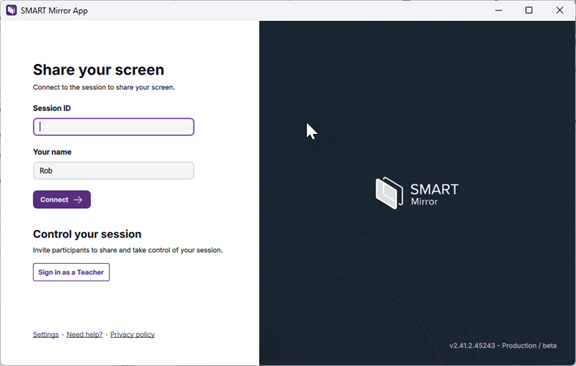
 Open the SMART Mirror app on your device. You’ll see the following:
- To enable touchback, click Settings in the bottom left corner and select the Touchback control option.
4. Connect to a display.
Session ID
If the SMART Mirror home screen displays a 6- or 10-digit session ID, type the session ID.