
When you are returning your Brearley-owned device, it is essential to follow specific steps to ensure proper handling by the Technology Department.
iMac and Macbook Computers
It is recommended that you remove any personal documents from your user account. Keep in mind that the Tech Department will completely wipe the laptops without inspecting any files or data.
Back up your local data
Ensure that all of your personal information has been backed up to an external Hard Drive, personal Google Drive, Dropbox, etc.
Sign out of iCloud
In macOS Ventura or later:
-
- Choose Apple menu > System Settings.
- Click your name.
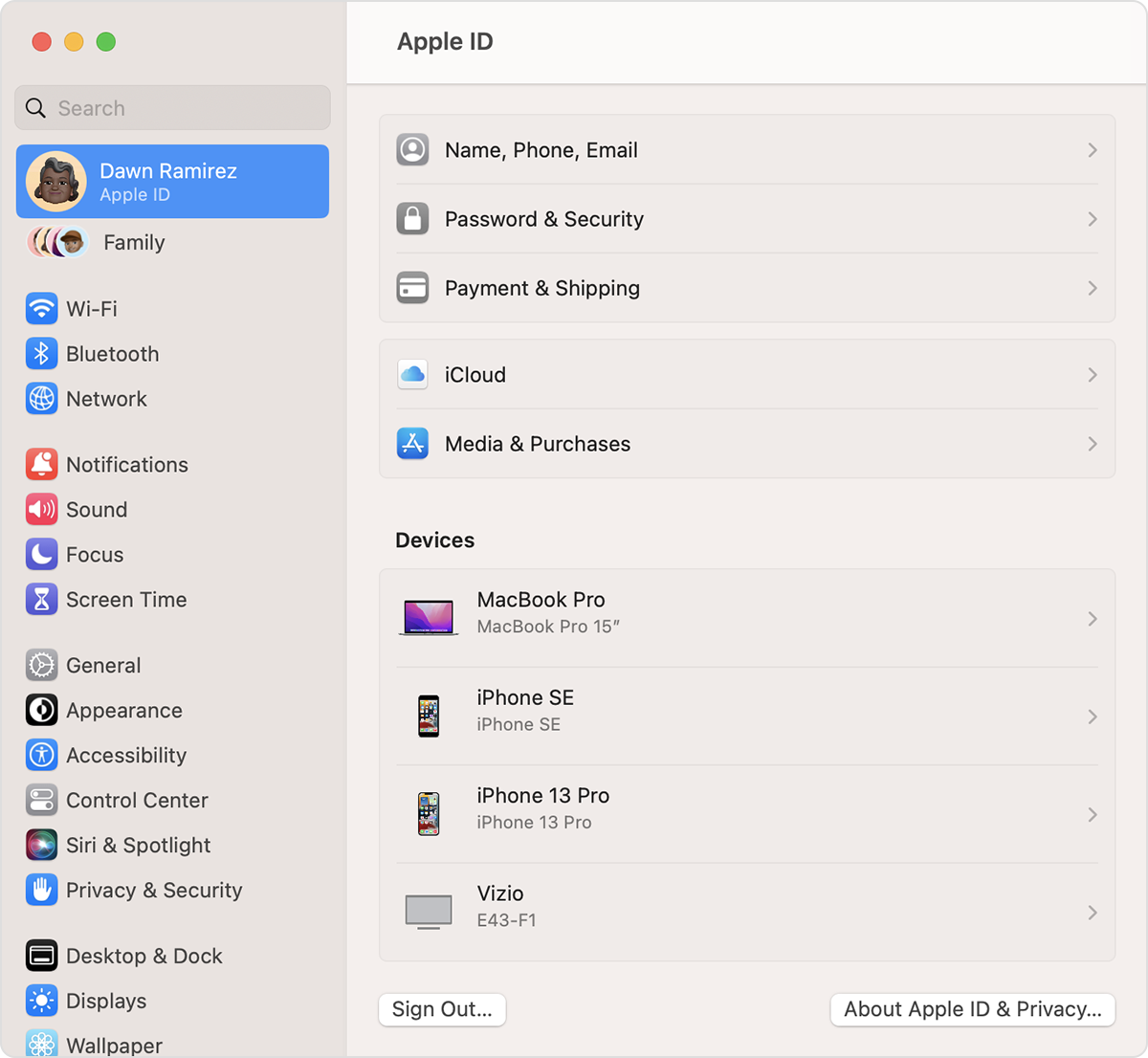
- Click Sign Out.
- If you want to a keep a copy of your iCloud data on your Mac before you sign out, make sure that you select the appropriate checkboxes. Then click Keep a Copy.
- If you want to keep a copy of your Safari passwords on your Mac, click Keep on This Mac.
The tech department will wipe and reinstall macOS on this device as soon as the device is turned in.
iPad/iPhone
You must disable the Find My (iOS) feature and log out of your iCloud account. If you are returning a Brearley-owned iPad or iPhone, follow these instructions:
Disable Touch ID/Face ID & Passcode
- Go to Settings

- Tap Touch ID/Face ID & Passcode
- Disable all the Touch ID/Face ID
- Select the Turn Passcode Off options
Disable Find My
- Go to Settings
- Tap [your name] > Find My
- Tap Find My [Device], then tap to turn it off
- Enter your Apple ID password
- Tap Turn Off
Sign out of iCloud
- Go to Settings , then tap your name.
- Scroll down to the bottom.
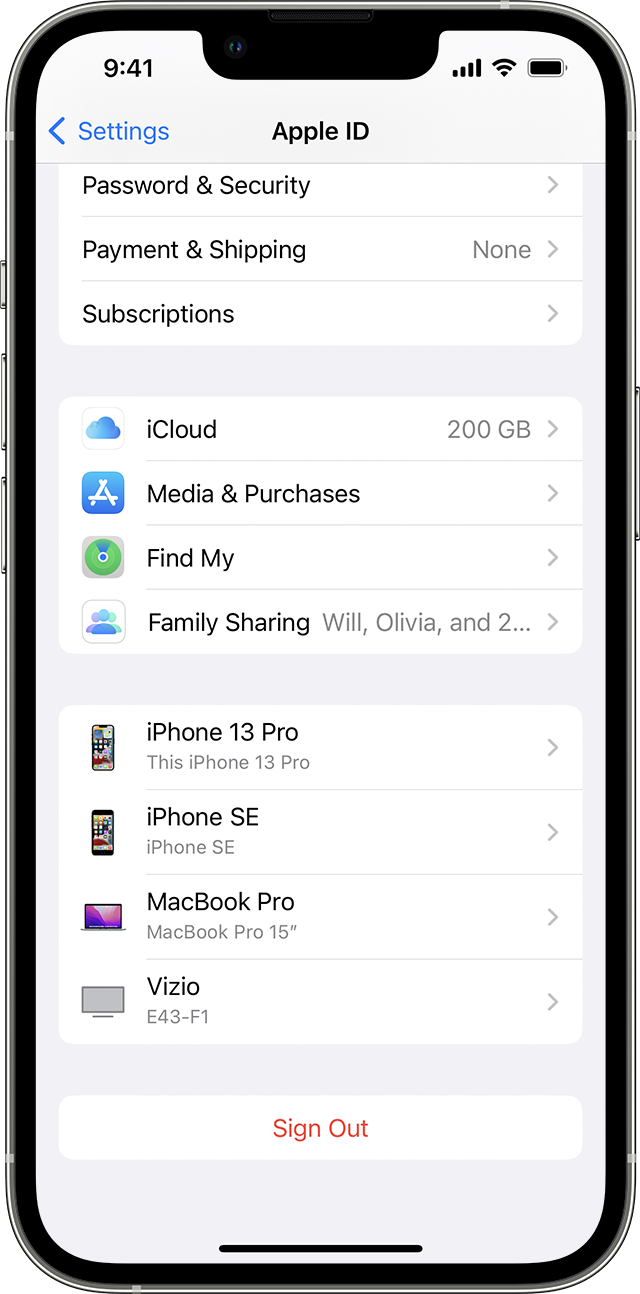
- Tap Sign Out
- Enter your Apple ID password and tap Turn Off. Forgot your Apple ID password?
- Turn on the data that you want to keep a copy of on your device
- Tap Sign Out
- Tap Sign Out again to confirm that you want to sign out of iCloud